Support at kaddi
Last updated: December 18, 2025.
To connect Kaddi to your Zoom account, ensure that you are both administrator of your Zoom account and Kaddi administrator.
Your Zoom license needs to be Pro or higher.
The Kaddi Zoom Integration only needs to be set up once by a Zoom administrator for all Kaddi users to be able to add their Zoom meeting transcripts to deals, and all Kaddi administrators to add any Zoom transcript in the Zoom account.
Zoom Account Settings
As the Zoom Account administrator, ensure that Zoom meetings are recorded to the cloud, and that recordings automatically have transcripts created.
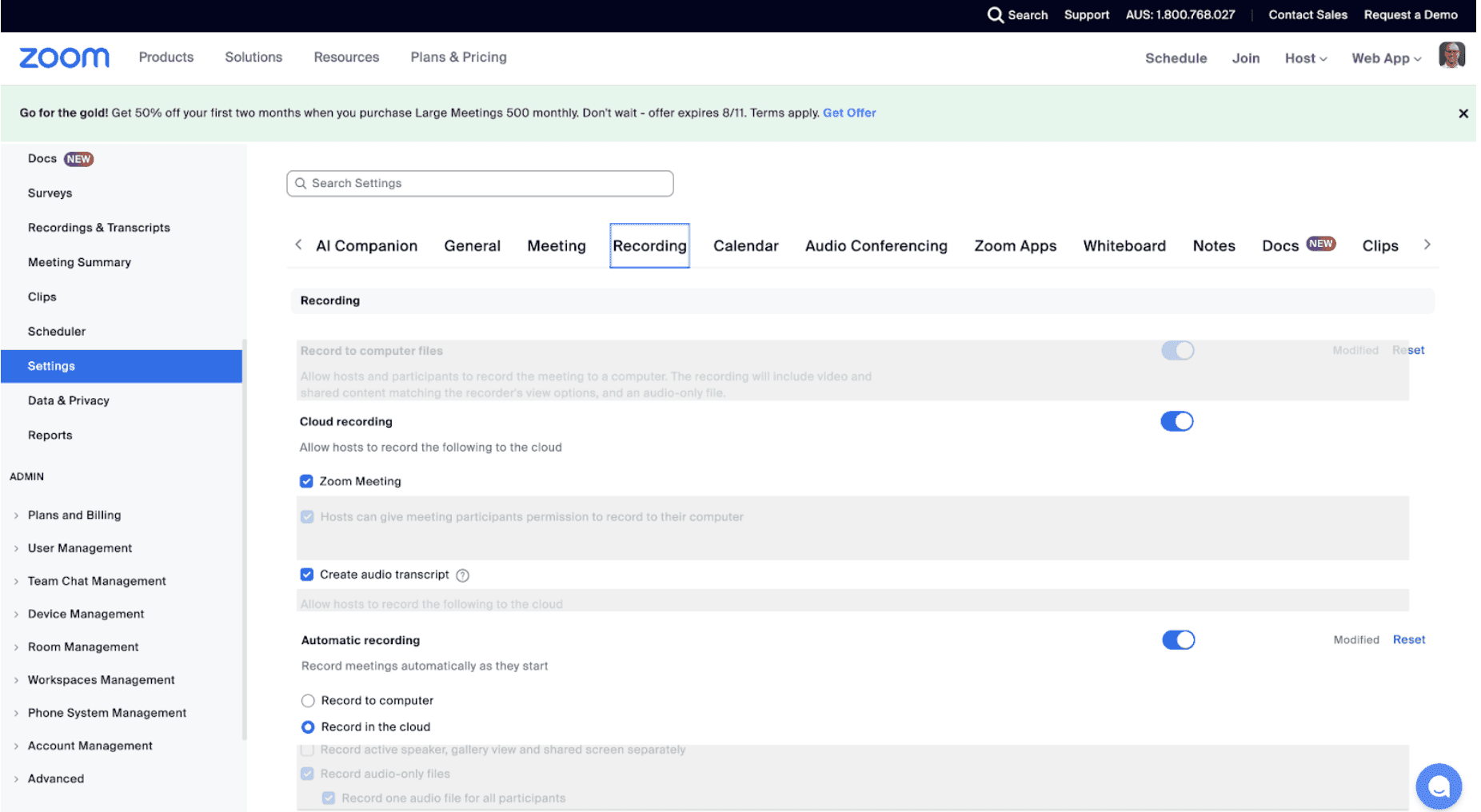
Setting up the Kaddi Zoom Integration
Login to Kaddi as an administrator
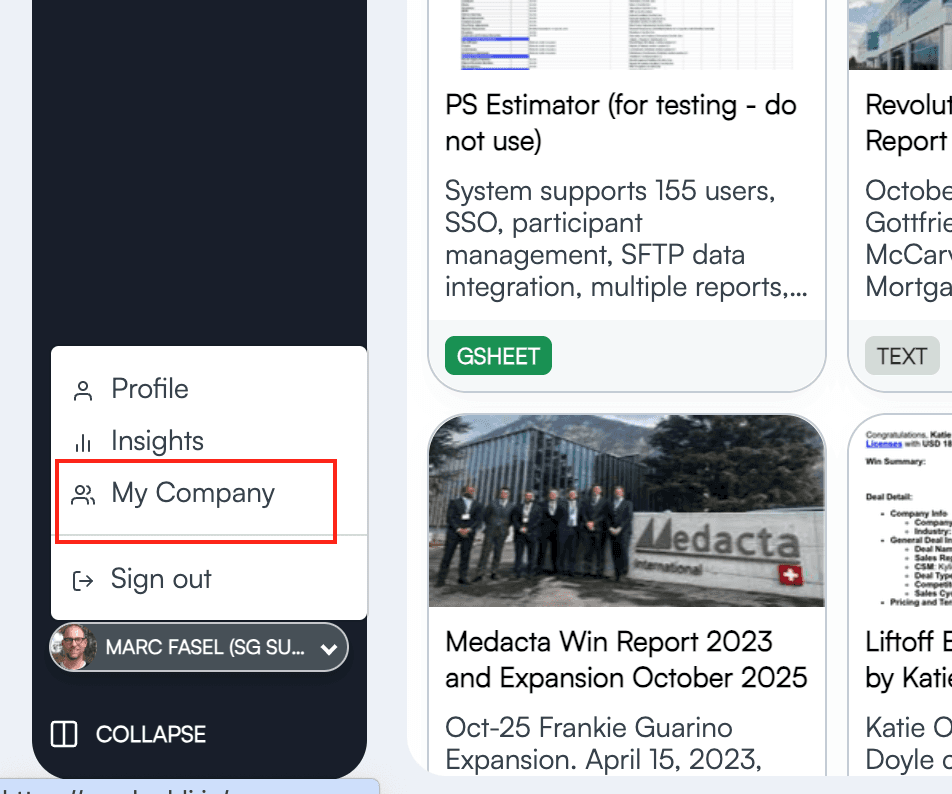
Navigate to “My Company” via the User Menu on the top right
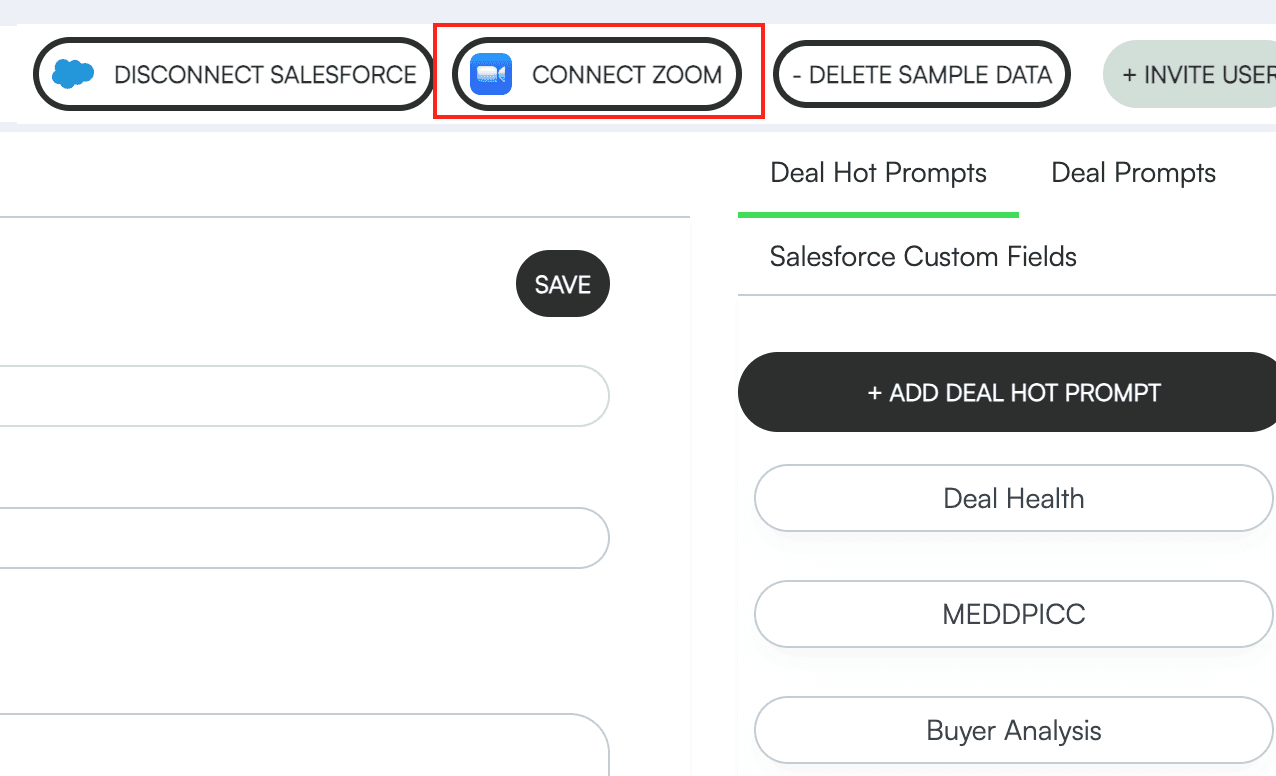
Click on the “Connect Zoom” button in the Navigation Bar
A dialog will appear to authorise the Kaddi Zoom Integration to access Zoom data
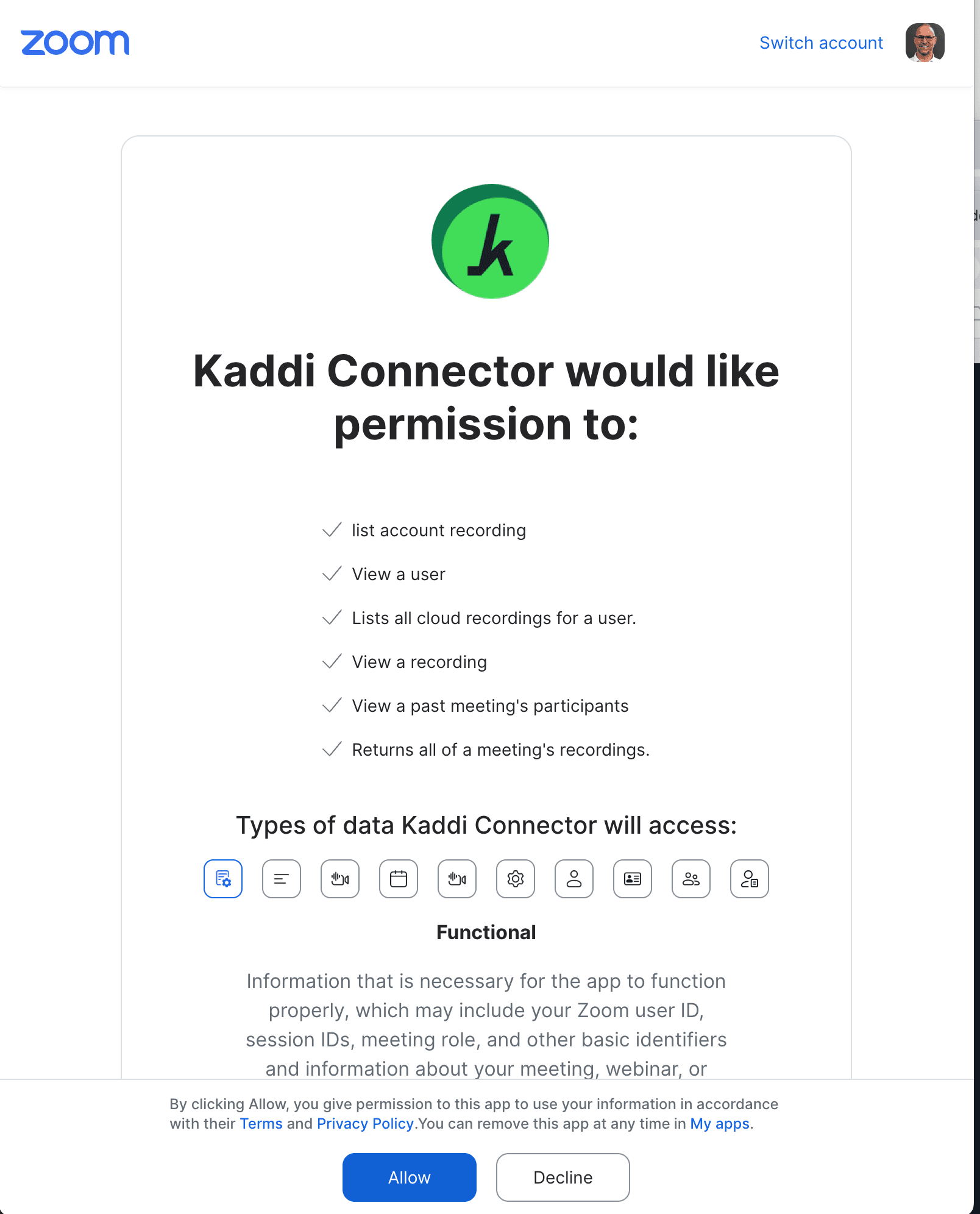
Once you allow the connection, the Zoom Integration is set up.
Usage
The Integration allows Kaddi users to add any transcript of a Zoom cloud recording to Kaddi deals. Kaddi users are able to add Zoom meeting transcripts of meetings that they hosted to deals, andSalesGRID administrators are able add any Zoom meeting transcript for the whole Zoom account.
To add Zoom transcripts to a Deal, click on “+ Add Deal Content” and pick the Zoom tab.
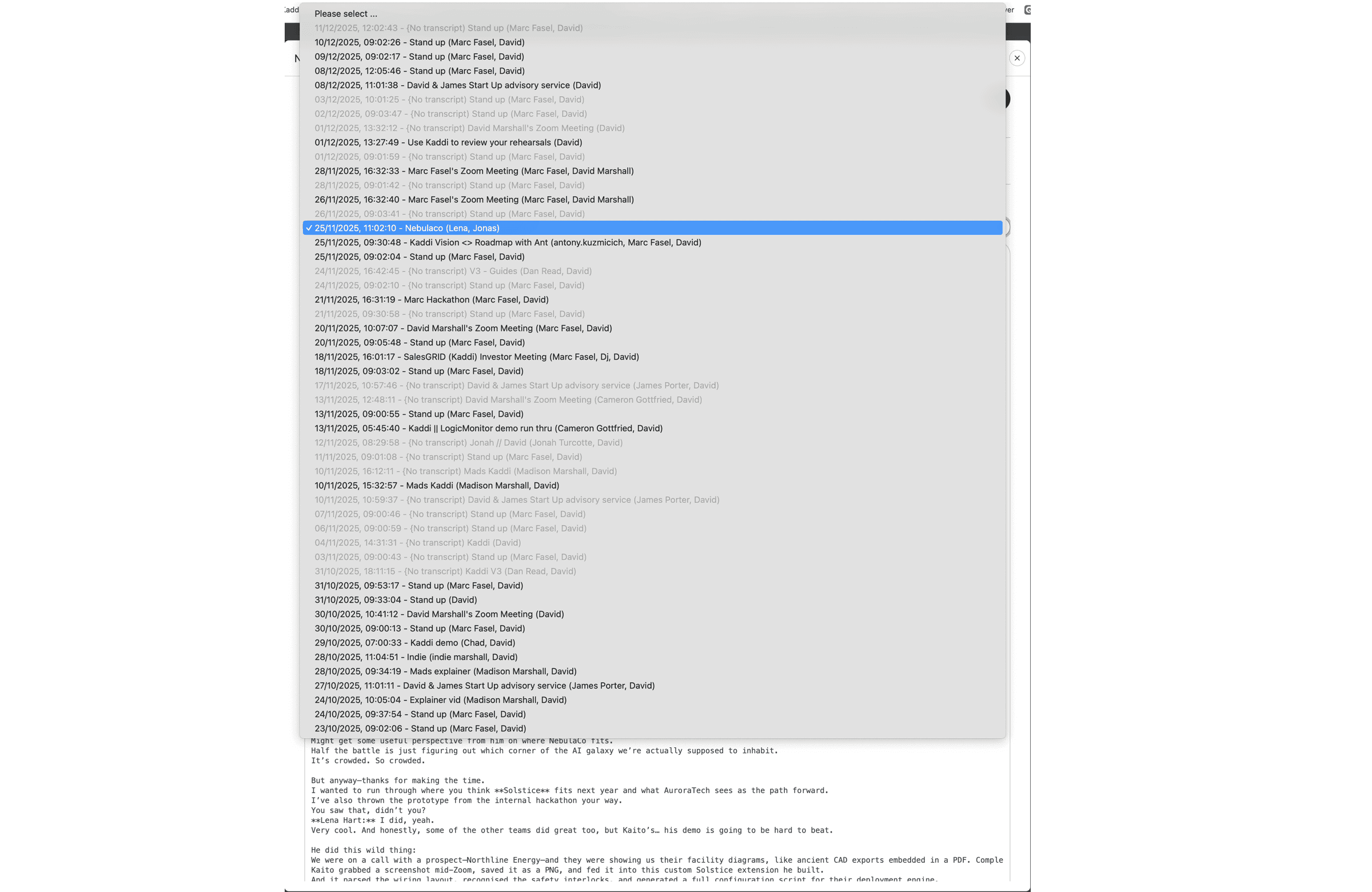
A list of Zoom cloud recordings with transcripts is given. If the cloud recording does not have a transcript, or the transcription is not finished, the meeting will not appear in the drop-down. Select the appropriate meeting transcript.
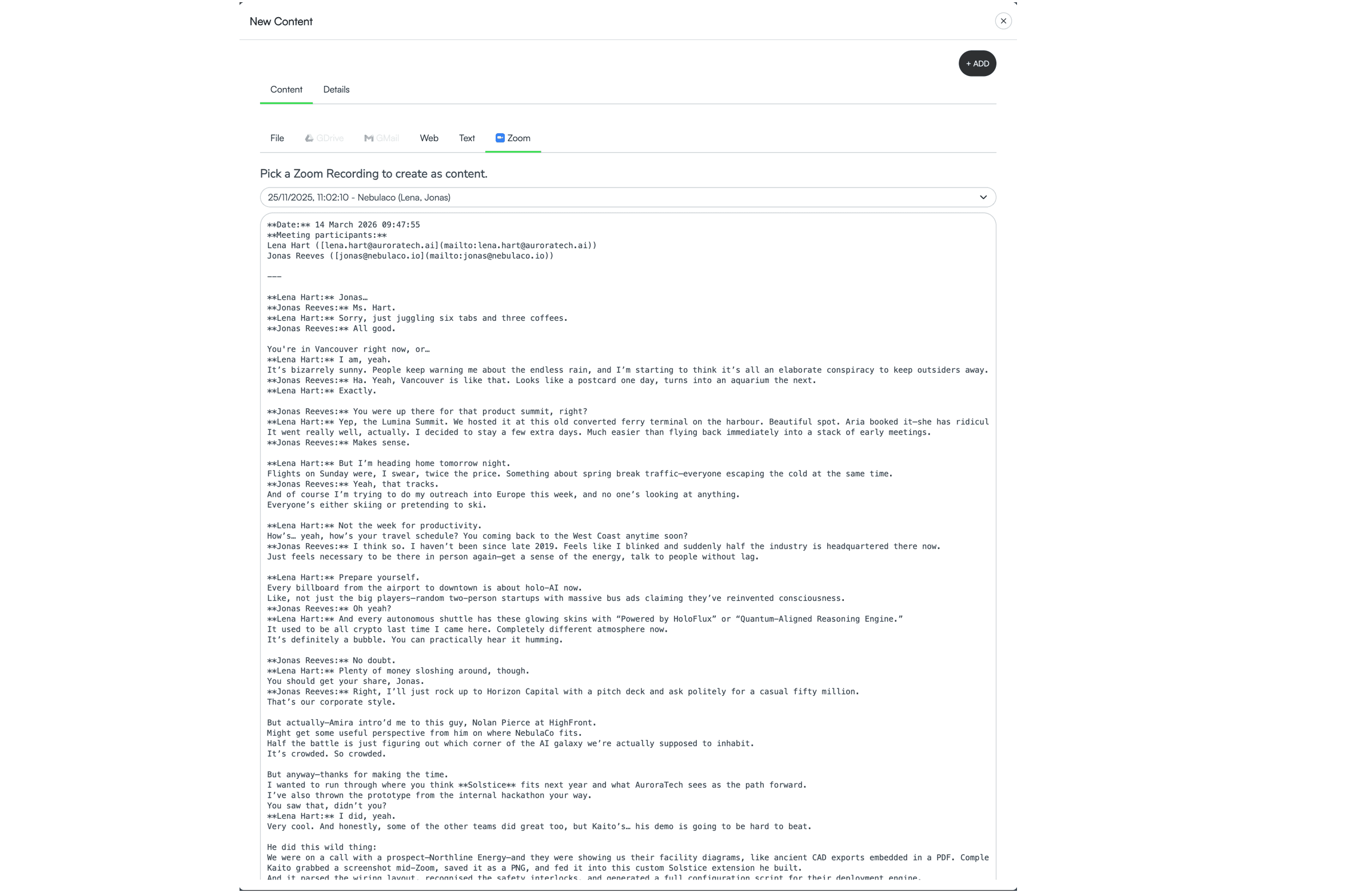
Now you can add the transcript as Deal Content. The transcripts will appear in the Deal Content list with badge “Zoom”
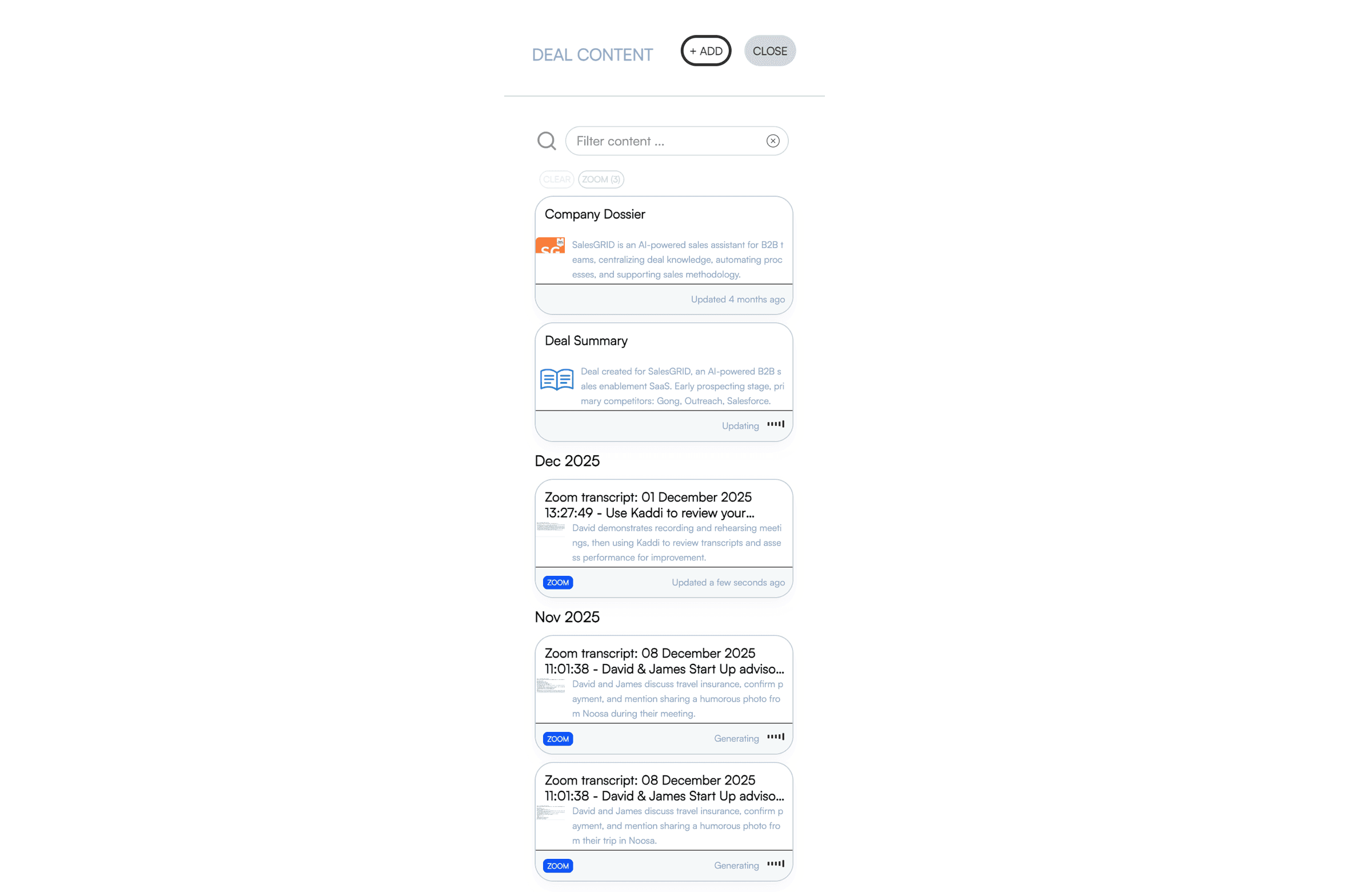
Zoom transcripts have the same features as any other deal content, and can now be used by Kaddi to answer questions about the deal or execute hot prompts.
Removing the Kaddi Integration
Removing the App is similar to adding the app.
Login to Kaddi as an administrator
Navigate to “My Company” via the User Menu on the top right
Click on the “Disconnect Zoom” button in the Navigation Bar
Existing Zoom Deal content will remain in Kaddi. The users will no longer be able to add new Deal Zoom Content. The Zoom tab will be greyed out.
Troubleshooting
Meeting doesn’t appear
There are several reasons why a meeting may not appear in the dropdown of Zoom transcripts.
The meeting wasn’t recorded to the cloud
Log into your Zoom account on the browser. Navigate to “My Account”, “Recordings & Transcripts.” Ensure that the meeting was recorded to the cloud and appears under “Cloud recordings”
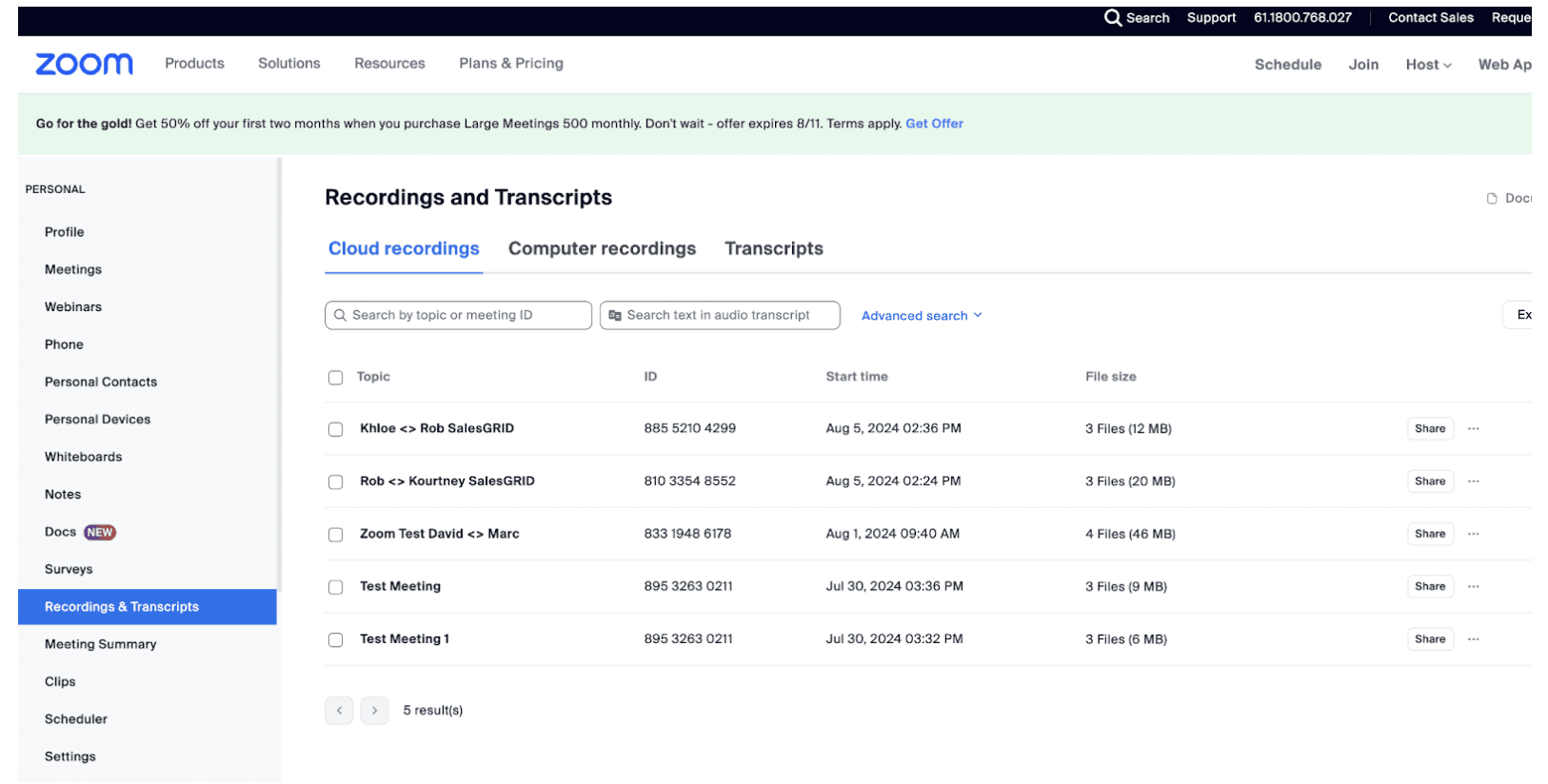
The meeting was not automatically transcribed
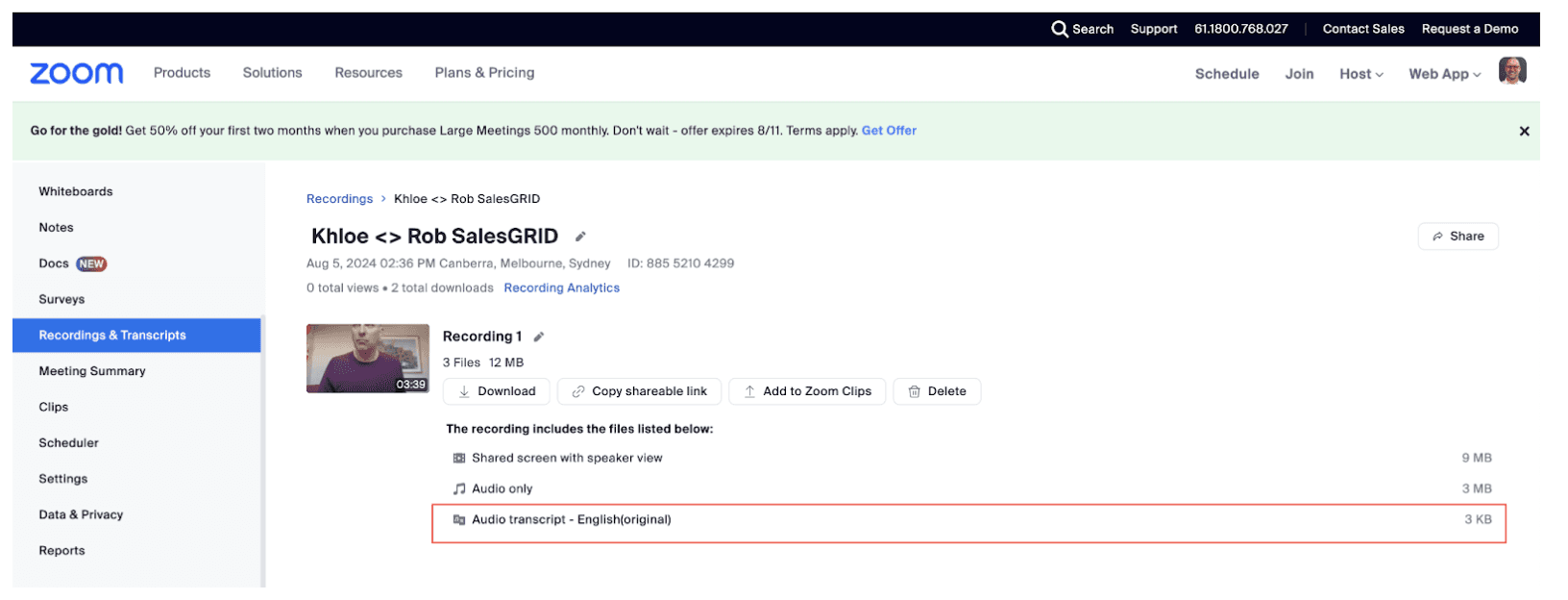
Zoom does not automatically transcribe all cloud recordings. The Zoom administrator needs to enable this functionality as described under “Zoom Account Settings.” To check whether your cloud recording has a transcript
Log into your Zoom account on the browser. Navigate to “My Account”, “Recordings & Transcripts.”
Click on a Cloud recording meeting
Check that one of the recording is the Audio transcript
The transcription is not ready yet
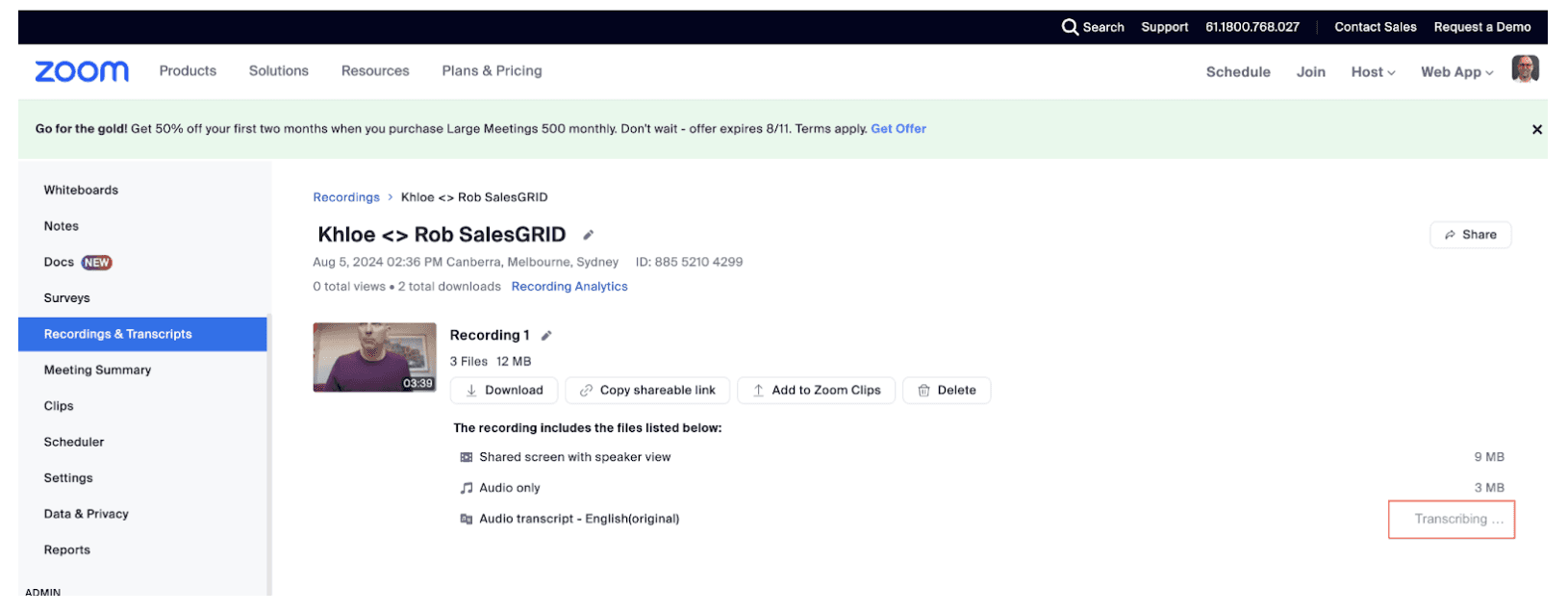
Transcribing a meeting is done offline by Zoom. This may take some time until the transcript is ready. To check whether the transcript is ready
Log into your Zoom account on the browser. Navigate to “My Account”, “Recordings & Transcripts.”
Click on a Cloud recording meeting
Check that one of the recordings is the Audio transcript, and it is not still transcribing. This means it is still being processed. Check later to see if transcription is finished.
You are a Kaddi user and you are not the host of the meeting
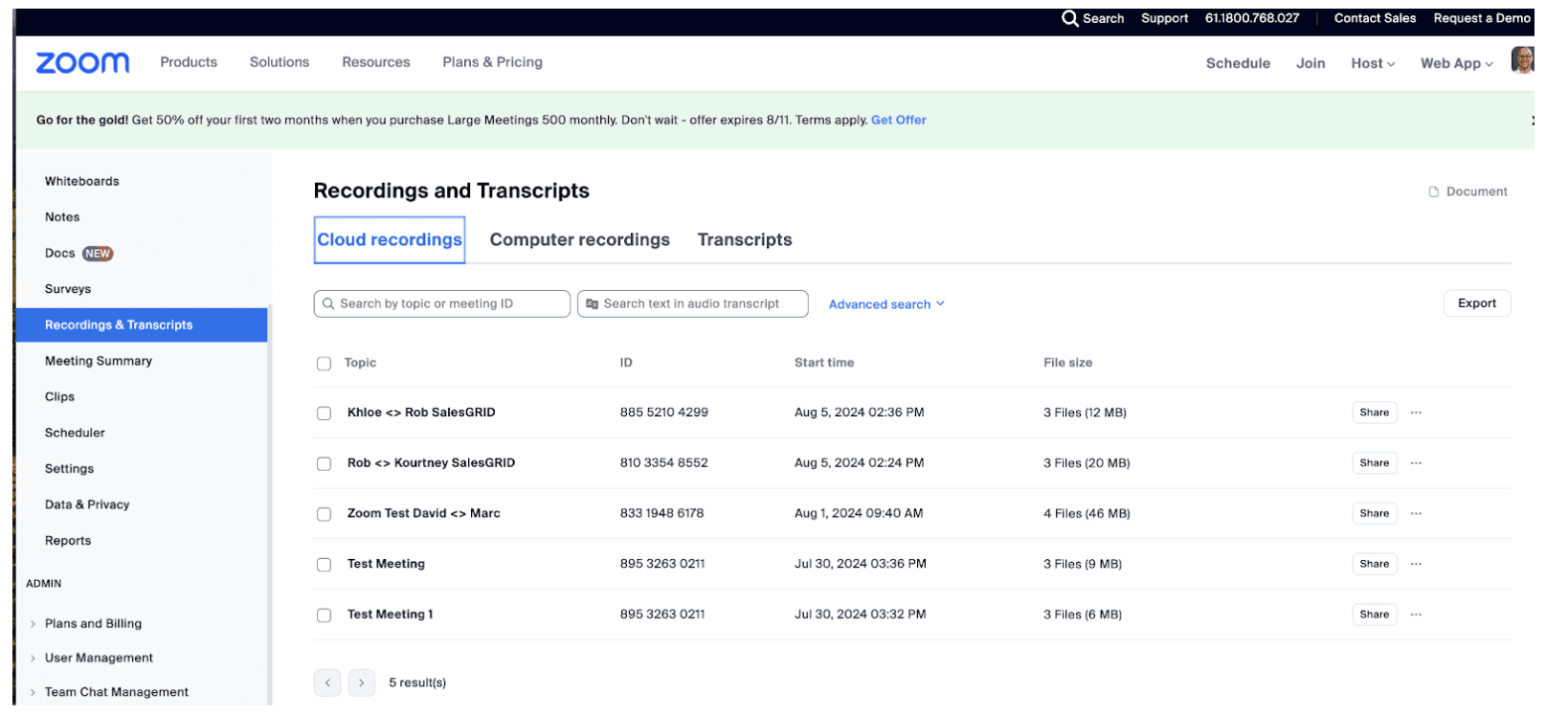
As a Kaddi user you can only see the meetings that you have hosted yourself. To check whether you hosted the meeting, find it in the list of Recordings & Transcripts.
Log into your Zoom account on the browser. Navigate to “My Account”, “Recordings & Transcripts.”
If the meeting is listed there, then you were the host.
Integration Stops Working
If for some reason the integration stops working, the first thing to try is to disconnect and reconnect the Integration. Follow the steps described above. If this does not solve the issue, please contact Kaddi support.
Contact Support
To contact Kaddi support, please send an email to support@kaddi.io
About Us
Security
Privacy Policy
Resources
Blog
Guide
Book a demo
Contact us
+61412319939
info@salesgrid.us
12192 Princes Highway
M-City CLAYTON VIC, Australia
Follow us
2025